
Getting a price for an injection-molded part usually means emailing a drawing, waiting days for a quote, and hoping the number doesn't surprise you. We built a free online estimator to change that — and it does three things most quoting tools cannot: it shows your part in 3D, it measures the part for you, and it helps you pick the right material.
This guide walks you through every field so you can get the most accurate estimate from it.
Three reasons to try it
First, 30 seconds is all it takes to get a realistic price range for both the mold and the unit part price. Second, upload your 3D file and it renders a rotatable preview right in the browser — no CAD software needed. Third, a built-in material assistant with 40+ grades recommends the right resin when you're unsure.
Watch it in action
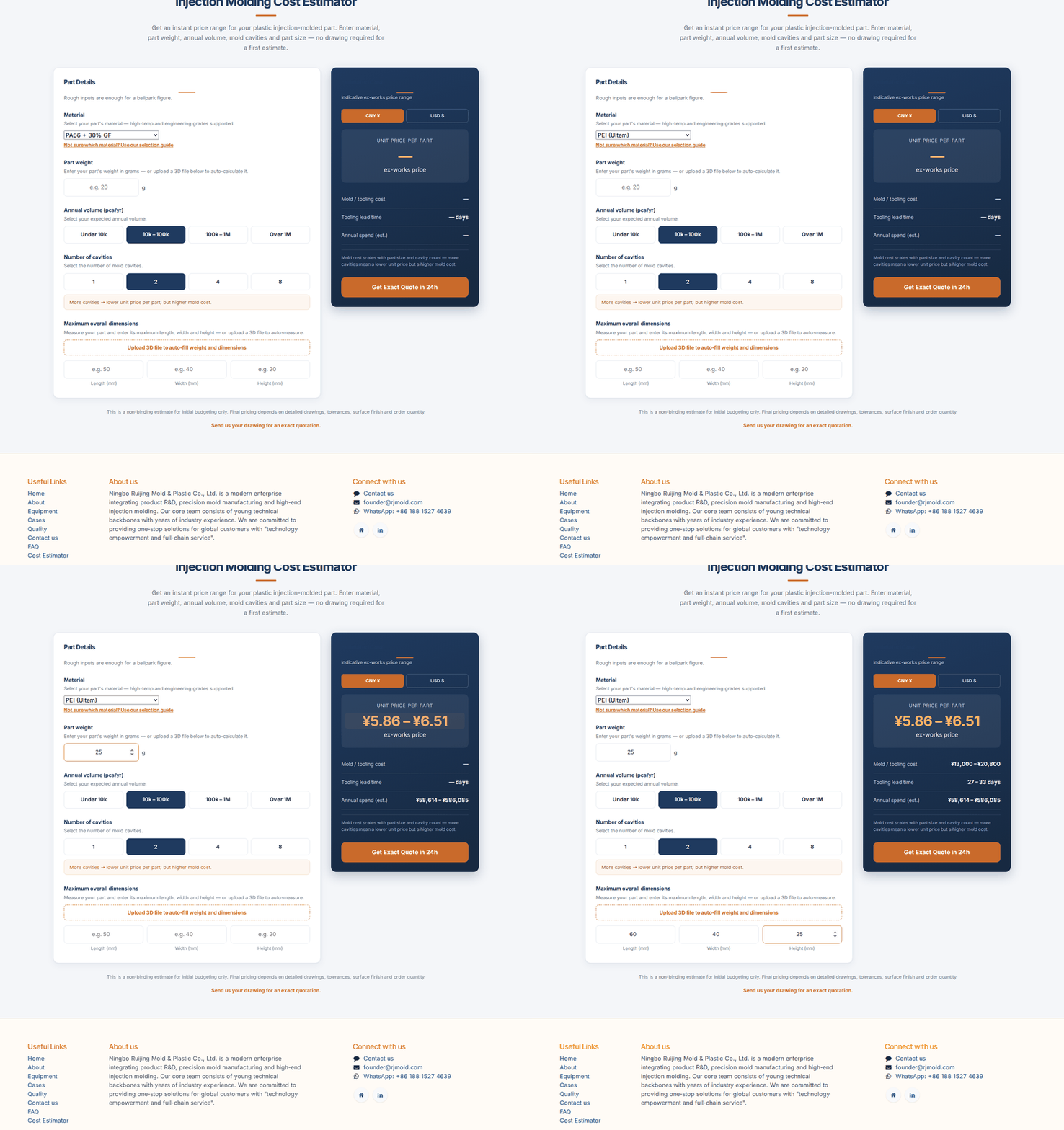
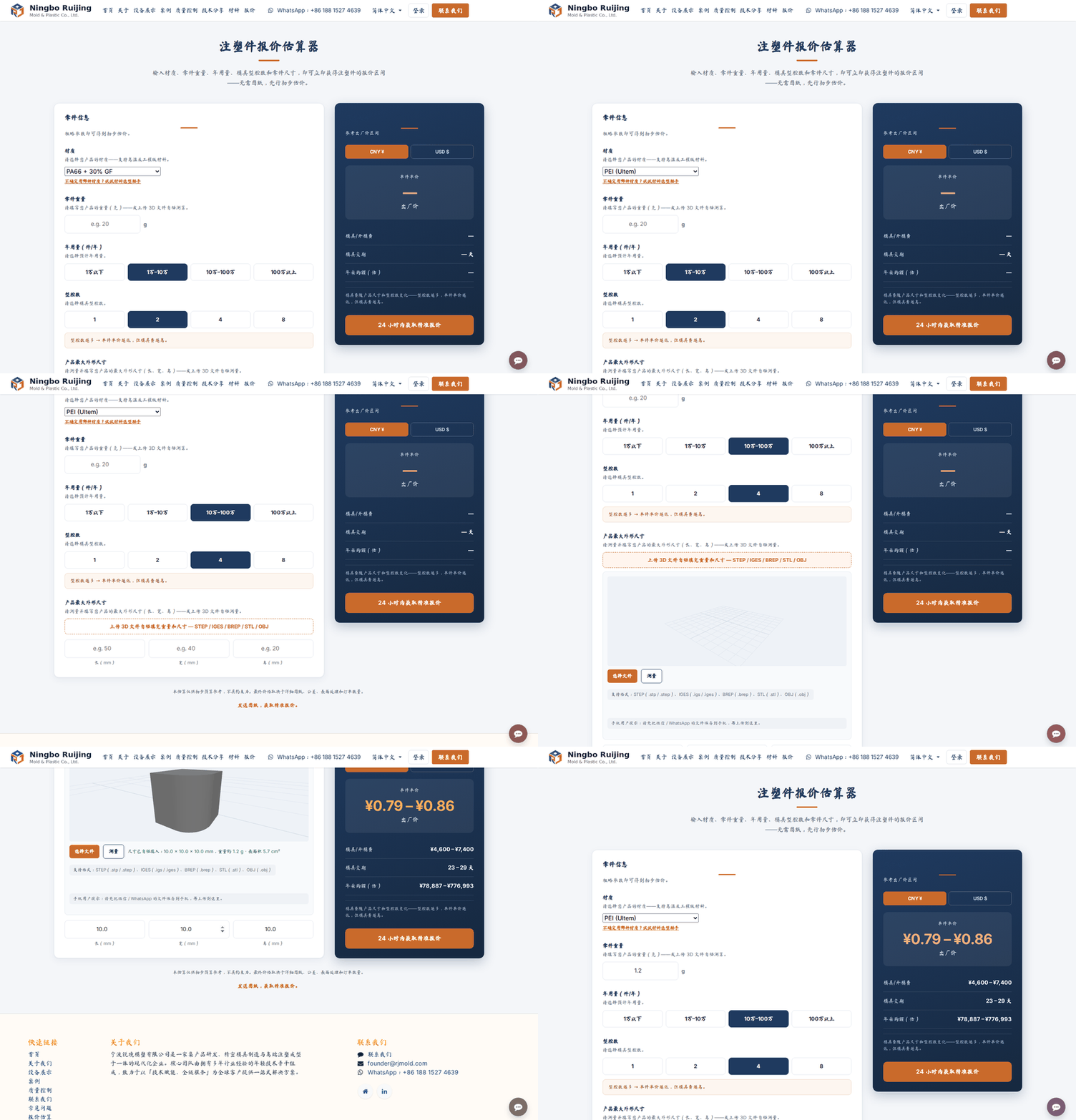
Fill in the material, weight and size, and the price updates instantly. Here's the whole flow in under a minute:
What the estimator gives you
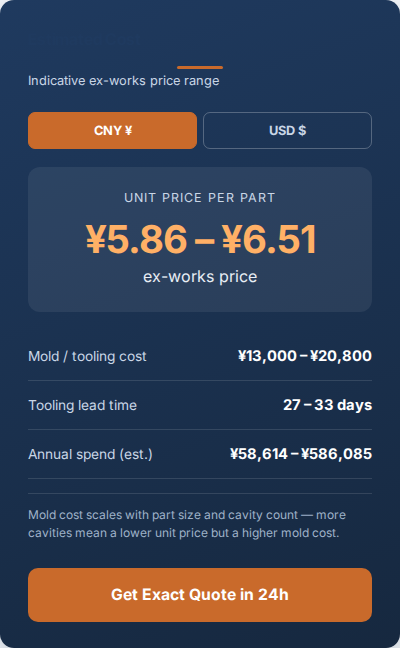
For any set of inputs, the tool instantly returns four numbers: unit price per part, mold / tooling cost, tooling lead time, and annual spend. It's a non-binding estimate for initial budgeting — once you're happy with the range, send us your drawing for an exact quote, typically within 24 hours.
Step 1 — Choose your material, or let the assistant pick
The material is the single biggest driver of unit price. The dropdown covers 40+ grades, from commodity plastics (ABS, PP, HDPE) to engineering resins (PC, POM, PA6/PA66 with glass fiber) and high-temperature grades (PEI, PSU, PEEK, PPS, PPSU, LCP). Not sure which grade fits? Use the material assistant — the "Not sure — recommend for me" option asks what the part is used for and suggests the right resin, or open our material selection guide for a quick comparison.
Step 2 — Enter the part weight (grams)
Type in your part's weight in grams. A rough number is enough for a preliminary estimate. Don't know the weight? Skip it and upload your 3D file in Step 5 — the tool auto-calculates weight from the model's volume and material density.
Step 3 — Pick your annual volume
Choose the range that matches your yearly demand: under 10k, 10k–100k, 100k–1M, or over 1M pieces per year. Higher volume spreads the mold cost over more parts, so the unit price drops.
Step 4 — Select the number of cavities
Cavities = how many parts the mold makes in one shot. Choose 1, 2, 4 or 8. More cavities lower the unit price but raise the mold cost — the estimator shows both sides of the trade-off.
Step 5 — Upload your 3D file and let it measure the part
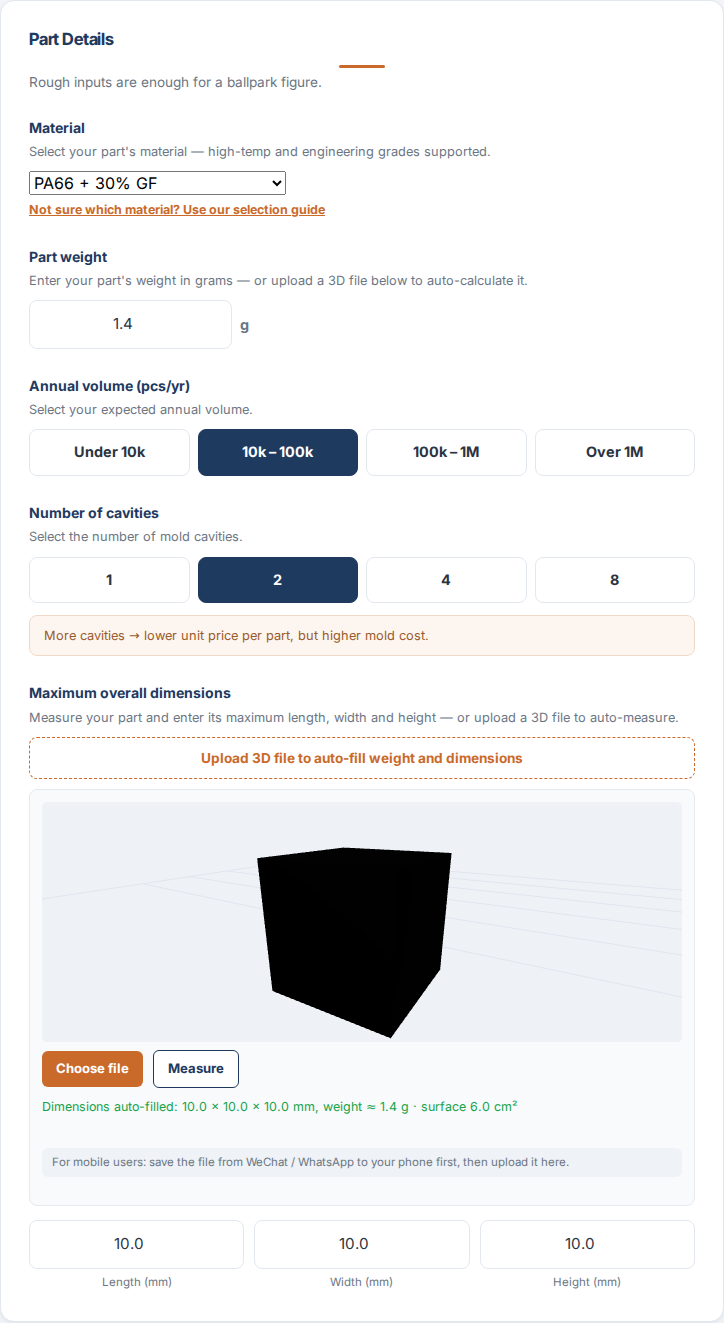
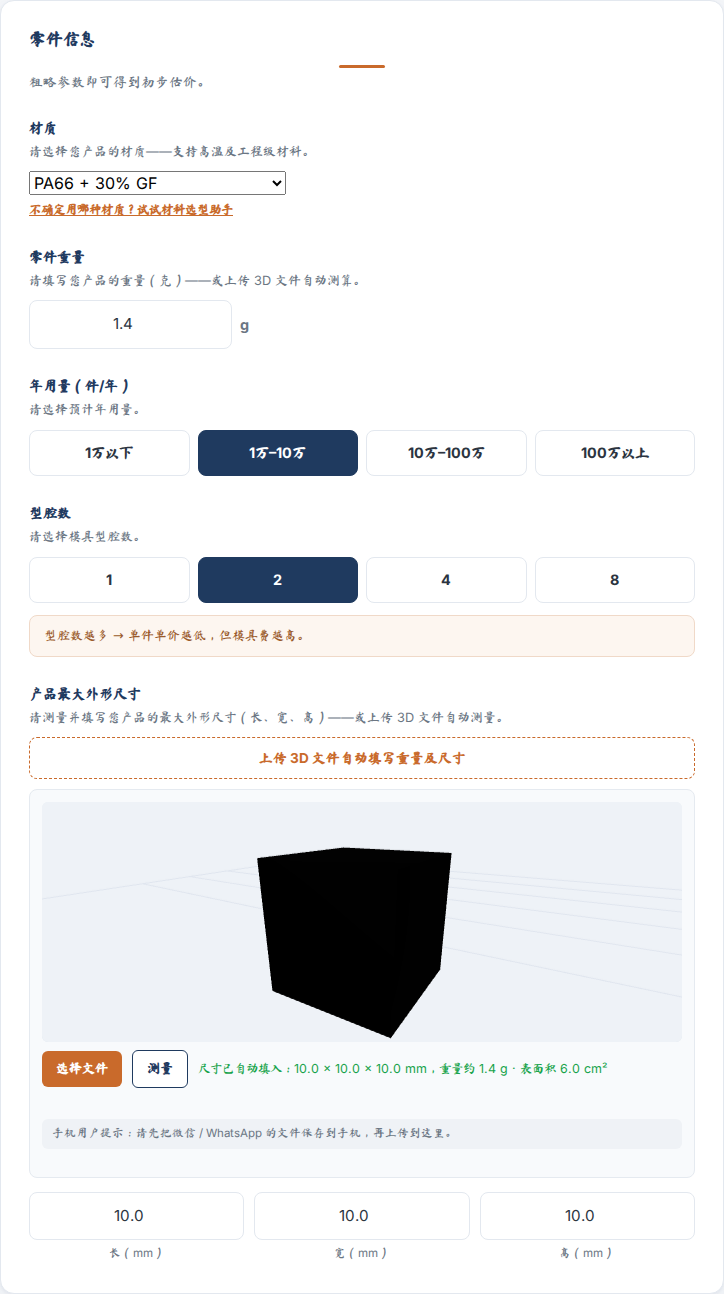
This is where the estimator proves its value. Upload your CAD file and it does the work for you: it measures the part's maximum length, width and height, calculates the weight from volume and material density, and shows a rotatable 3D preview right in the browser.
It accepts the formats engineers actually use — STEP (.stp / .step), BREP, IGES (.igs / .iges), plus STL and OBJ. STEP is the one most customers already have, exported straight from SolidWorks, NX, CATIA or Creo.
Here's what happens when you drop in a STEP file — the dimensions and weight fill themselves in:
On mobile, save the file from WeChat / WhatsApp to your phone first, then upload it from the estimator.
Step 6 — Read your result
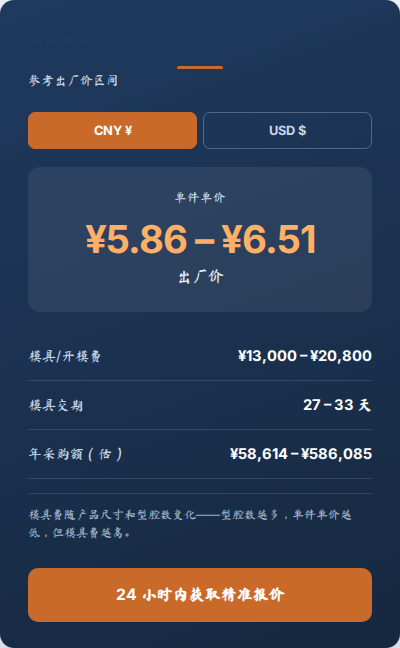
The result panel updates instantly as you type. You'll see the unit price per part, mold / tooling cost (a range), tooling lead time in days, and annual spend. Toggle between CNY ¥ and USD $ with the currency switch.
Step 7 — Get your exact quote
The estimate is for budgeting. When you're ready for a firm price, hit "Get Exact Quote in 24h" — it opens our contact form where you can attach your drawing or 3D file. We respond with a detailed quotation within 24 hours.
Frequently asked questions
What file formats does the estimator accept? STEP (.stp / .step), BREP, IGES (.igs / .iges), STL and OBJ. STEP is recommended — it's the native CAD format most engineers already have.
Is the estimate accurate? It's an indicative ex-works range for initial budgeting. Final pricing depends on your detailed drawing, tolerances, surface finish, and exact order quantity — which is why we confirm with a formal quote.
Do I need a drawing to use it? No. Rough weight and dimensions are enough for a first estimate. A 3D file makes it more accurate.
What if I'm not sure about the material? Choose "Not sure — recommend for me" and tell us about the part in the quote form — we'll suggest the right grade.
Does a higher cavity count always save money? Only at higher volumes. The mold costs more to build, so you need enough annual volume to amortize it.
Ready to price your part?